I was running into this too and have been battling trying to get the hat up and running into a bunch of issues like the overlay errors plus not being able to detect /dev/ttyUSB* devices, whatever reason and just finally got everything up and running and put together a doc of the different steps and hurles i encountered…
Raspberry Pi 5 + Sixfab Telit LE910C4-NF LTE Failover Runbook
This runbook captures the exact working path used to get Sixfab LTE working on a fresh Raspberry Pi 5 install, including:
-
ECM modem setup
-
Wi-Fi primary + LTE fallback routing
-
Boot persistence via systemd
-
DNS fixes for LTE-only operation
Scope
Hardware used:
-
Raspberry Pi 5
-
Sixfab Base HAT
-
Telit LE910C4-NF modem
-
Sixfab SIM (APN: super)
OS behavior observed:
1) One-Time Package Setup
Run while normal internet is available:
sudo apt update

sudo apt install -y usbutils minicom isc-dhcp-client net-tools curl ca-certificates
Remove common serial/modem interferers:
sudo apt purge -y modemmanager brltty
2) Confirm Modem Detection
lsusb

lsusb -t

ip -br a
Expected:
If no AT ports exist initially, load/bind serial drivers:
sudo modprobe usbserial

sudo modprobe usb_wwan

sudo modprobe option

echo 1bc7 1251 | sudo tee /sys/bus/usb-serial/drivers/option1/new_id

ls /dev/ttyUSB* 2>/dev/null
3) Find Working AT Port
Usually /dev/ttyUSB2, but verify:
for p in /dev/ttyUSB0 /dev/ttyUSB1 /dev/ttyUSB2 /dev/ttyUSB3; do

echo "=== $p ==="

sudo timeout 3 sh -c "printf 'AT\r' > $p; dd if=$p bs=1 count=64 status=none" 2>/dev/null | tr -d '\r'

echo

done
Use the port that responds with OK.
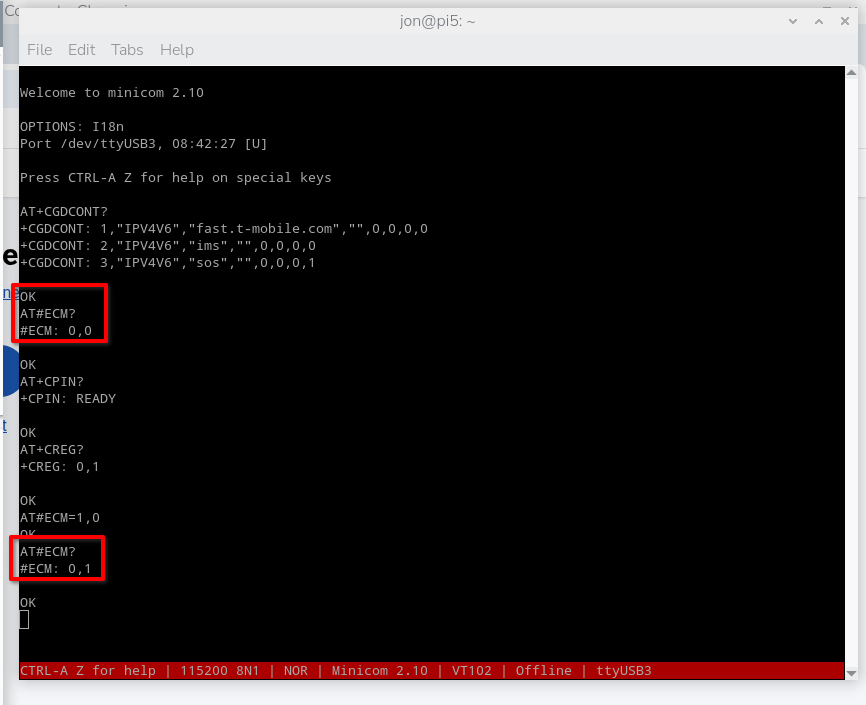
4) Configure Modem (ECM)
Open minicom:
sudo minicom -D /dev/ttyUSB2 -b 115200
Run one command at a time:
AT

AT+CPIN?

AT+CREG?

AT+CGDCONT?

AT+CGDCONT=1,"IPV4V6","super"

AT#ECM=1,0

AT#ECM?
Notes:
-
If the modem re-enumerates and minicom disconnects, reconnect and continue.
-
AT#ECM? should report active data context (0,1).
5) Bring Up LTE Interface from Linux
Replace wwan0 with usb0 if needed.
sudo ip link set wwan0 up

sudo dhclient -v wwan0

ip addr show wwan0
Connectivity checks:
ping -I wwan0 -c 5 8.8.8.8

sudo ping -I wwan0 -c 5 sixfab.com
6) Route Priority (Wi-Fi First, LTE Fallback)
Set Wi-Fi preferred in NetworkManager:
sudo nmcli connection modify "<UR_WIFI_NETWORK>" ipv4.never-default no ipv6.never-default no

sudo nmcli connection modify "<UR_WIFI_NETWORK>" ipv4.route-metric 100 ipv6.route-metric 100
If <UR_LTE_HAT_NETWORK> is present but no cable is attached, disable its autoconnect:
sudo nmcli connection modify "<UR_LTE_HAT_NETWORK>" connection.autoconnect no
Add LTE backup route (runtime):
sudo ip route replace default via 192.168.225.1 dev wwan0 metric 600
Verify:
ip route
Expected behavior:
7) DNS Fix for LTE-Only Mode
If ping 8.8.8.8 works but ping google.com fails with name resolution errors:
printf "nameserver 1.1.1.1\nnameserver 8.8.8.8\n" | sudo tee /etc/resolv.conf >/dev/null
8) Boot Persistence via systemd
Create startup script:
sudo tee /usr/local/sbin/lte-failover-up.sh >/dev/null <<'EOS'

#!/usr/bin/env bash

set -euo pipefail

ip link set wwan0 up 2>/dev/null || true

dhclient -v wwan0 || true

ip route replace default via 192.168.225.1 dev wwan0 metric 600 || true

printf "nameserver 1.1.1.1\nnameserver 8.8.8.8\n" > /etc/resolv.conf || true

EOS

sudo chmod +x /usr/local/sbin/lte-failover-up.sh
Create service:
sudo tee /etc/systemd/system/lte-failover-up.service >/dev/null <<'EOS'

[Unit]

Description=Bring up LTE fallback

After=network-online.target

Wants=network-online.target

[Service]

Type=oneshot

ExecStart=/usr/local/sbin/lte-failover-up.sh

RemainAfterExit=yes

[Install]

WantedBy=multi-user.target

EOS
Enable and run:
sudo systemctl daemon-reload

sudo systemctl enable lte-failover-up.service

sudo systemctl start lte-failover-up.service

sudo systemctl status lte-failover-up.service --no-pager
9) Validation Checklist (Post-Reboot)
ip -br a

ip route

cat /etc/resolv.conf

systemctl status lte-failover-up.service --no-pager

ping -c 3 8.8.8.8

ping -c 3 google.com
Failover test:
-
Turn Wi-Fi off.
-
Confirm route falls back to LTE (default via 192.168.225.1 dev wwan0 ...).
-
Verify internet still works.
-
Turn Wi-Fi back on.
10) Common Gotchas
-
dhcpcd.service not found: system is using NetworkManager.
-
RTNETLINK answers: Operation not permitted: command needs sudo.
-
Unit lte-failover-up.service not found: service file not created yet.
-
Temporary failure in name resolution: DNS issue, not necessarily LTE transport issue.
-
Interface name changes (usb0 vs wwan0): always confirm with ip -br a.
Quick Recovery Commands
ip -br a

ip route

sudo ip link set wwan0 up

sudo dhclient -v wwan0

sudo ip route replace default via 192.168.225.1 dev wwan0 metric 600

printf "nameserver 1.1.1.1\nnameserver 8.8.8.8\n" | sudo tee /etc/resolv.conf >/dev/null

ping -c 3 8.8.8.8

ping -c 3 google.com
Hopefully this is helpful/useful for some other people and saves them a bunch of headaches 
 Aside from those errors, I also have no wwan interface showing up in ifconfig, but it does show up in ipaddr. I did enter command ip addr show wwan0 earlier so I’m not sure if it’s showing up because it detects it or because that commands is asking it to show it regardless of whether it exists.